

Phone-Connected Vapes: Common Sync Problems


If your vape won’t sync, the fault is usually not the device. In most cases, I’d check Bluetooth pairing, app permissions, login status, firmware version, battery level, and saved pairings first.
Here’s the short version:
- Pairing drops often come from low battery, missed pairing mode, old saved phones, or Bluetooth noise.
- App sync fails even with Bluetooth connected when the app login is broken, permissions are off, or firmware versions don’t match.
- Battery drain gets worse with screens, LEDs, and live syncing.
- Heat matters in Bahrain. At 40 °C+, battery drain can rise by about 22%, and connection trouble can show up more often.
- Indoor Bluetooth range can fall to around 3–5 m in busy spaces, even if the device works fine at close range.
- If the vape keeps connecting to the wrong phone, clear old pairings on all phones and pair again with just one.
- If it won’t enter pairing mode, cuts power during updates, gets hot, rattles, or swells, I’d stop there and treat it as a hardware issue.
A simple fix order usually works best:
- Charge both devices above 20%
- Restart the phone and vape
- Forget old Bluetooth pairings
- Pair again inside the official app
- Check app permissions and login
- Confirm firmware match before updating
- Test away from Wi‑Fi and other Bluetooth devices
- Try another cable, charger, or pod if power keeps dropping
This guide walks through that order so you can rule out the common faults first, without wasting time on resets too early.
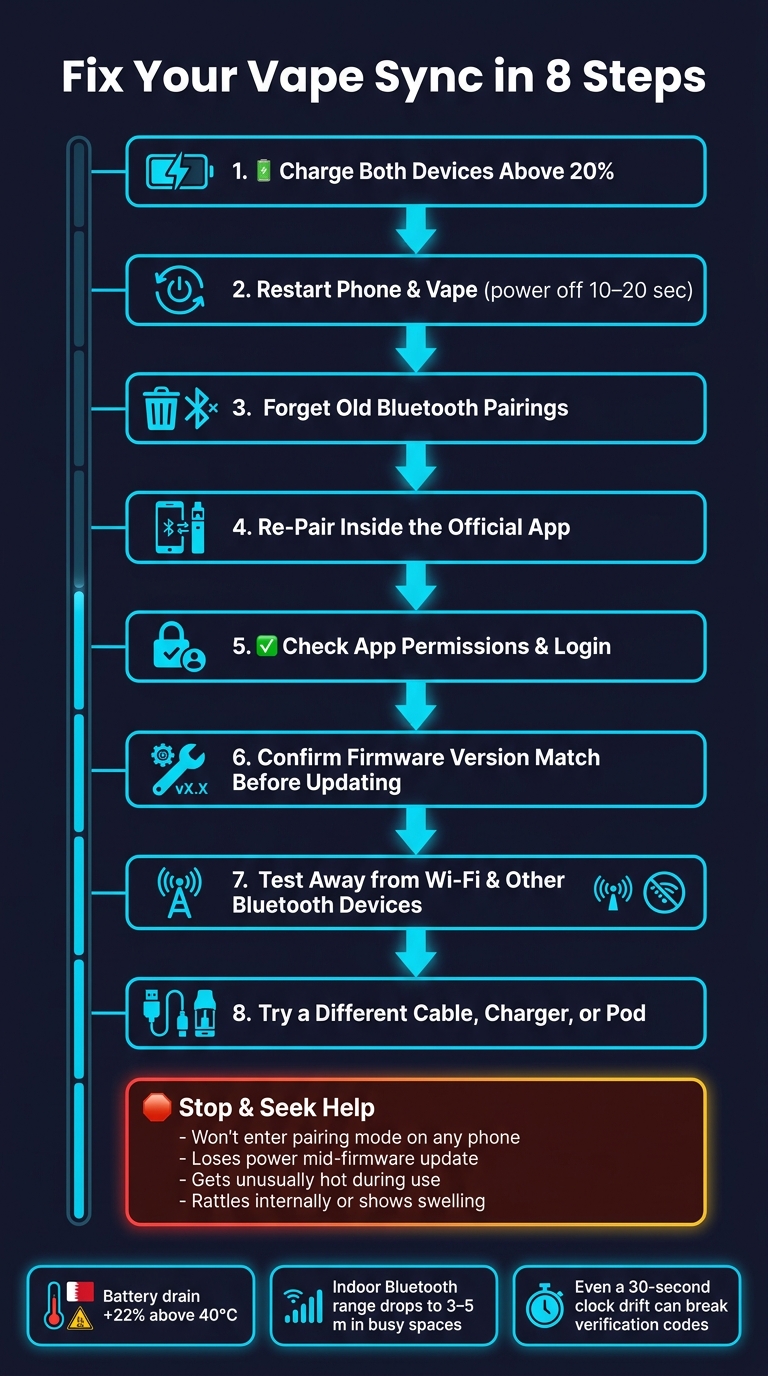
How to Fix Phone-Connected Vape Sync Issues: Step-by-Step
How To Fix A Disconnected Puffco Peak Pro App When Its Straight Disconnected
sbb-itb-837e7ad
Pairing drops between your phone and vape
Pairing drops tend to show up in a few annoying ways: a brief connection, a failed scan, or an app that just won’t keep the link alive. You open the app, the vape looks connected, then it disappears a few seconds later. Or the app scans and finds nothing, even though Bluetooth is on. Sometimes the link cuts out halfway through a session while you’re checking puff data or changing settings.
One of the most confusing signs is this: the vape appears in your phone’s Bluetooth settings, but the official app still says "Device not found". That usually means your phone sees the device, but the app needs its own pairing flow to finish the job. In most cases, the problem comes down to pairing mode, saved devices, battery level, or signal interference.
Common causes of pairing drops
Bluetooth can look active even when the radio has frozen. Many smart vapes also need a button hold before the app can detect them. If the vape has been paired with more than one phone, it may try to reconnect to a remembered device instead of the phone you’re using now.
Low battery on either device can make the connection unstable. Some smart vapes also scale back wireless features when the charge gets low. In busy indoor spaces across Bahrain, the steady range often falls to 3–5 m. If you need a replacement device quickly, vape delivery in Bahrain can provide a new kit within 24 hours. Walls, metal surfaces, and heavy 2.4 GHz interference from Wi‑Fi and nearby devices can make random dropouts much more likely.
Once you have a likely cause in mind, go through the fixes below in order.
Step-by-step fixes for most pairing issues
Work through these one by one:
- Restart both devices and check that both are above 20%. Turn the vape off for 10–20 seconds, then switch it back on. Fully restart the phone too, not just the screen, so any Bluetooth stack glitches get cleared.
- Remove old Bluetooth entries. Open your phone’s Bluetooth settings, find the vape, and tap "Forget" or "Remove". On the vape side, use the manual’s Bluetooth reset method to clear saved phone pairings.
- Re-pair through the official app. Use the app’s "Add device" or "Pair device" option instead of pairing only through system settings. Keep the phone and vape within 0.5–2 m of each other during this step, and stay away from metal surfaces.
- Check app permissions. On both Android and iOS, the companion app may need location and nearby-device permissions before it can scan. If you denied them during setup, switch them on in your phone’s app settings.
- Reduce nearby wireless devices. Turn off other Bluetooth gear for a moment, like headphones, a smartwatch, or a car system. Move away from crowded Wi‑Fi areas too. If the connection becomes steady, bring devices back one at a time to spot what’s causing the interference.
Use the table below to match the symptom with the most likely cause and the first thing to try.
| Symptom | Most Likely Cause | First Fix |
|---|---|---|
| Vape connects briefly then drops | Low battery or frozen Bluetooth | Charge both above 20% and restart both devices |
| App cannot find the vape at all | Vape not in pairing mode | Hold button until LED flashes, then scan in the official app |
| Vape connects to a different phone | Old saved pairings on multiple devices | Forget device on all phones, reset vape Bluetooth, re-pair |
| Connection drops when you move away | Distance beyond effective indoor range | Stay within 0.5–2 m during use, avoid obstacles |
| App shows "Permissions required" | Location or nearby-device permissions denied | Grant permissions in phone app settings, relaunch app |
| Interference from nearby devices | 2.4 GHz interference from Wi‑Fi and other devices | Move to a quieter spot, disable unused Bluetooth accessories |
If pairing stays active but the app still will not sync, move on to login and firmware checks.
App login errors and firmware mismatch
If Bluetooth stays connected but sync still fails, the issue is often in the app or firmware. In plain terms, the link is there, but something higher up is getting in the way: a bad login, an old session that never cleared, or a firmware version that doesn’t match the device.
Login errors that stop the app from syncing
Login failures usually trace back to a few common causes: the wrong account details, an old login session, or the phone’s clock being off. Start with the basics. Check the registered email address or phone number, reset the password if needed, switch the phone to automatic date and time, and then request a new code. Even a 30-second clock drift can break verification codes.
If the app fails on only one network, the account may not be the problem at all. Turn off the VPN and test again using mobile data or another Wi-Fi network. That’s often the fastest way to spot whether the network is blocking the app.
If login fails, the vape may still work by hand. What you lose are app-based features like puff logs, remote settings, and firmware checks.
Firmware conflicts and how to update safely
Firmware issues usually happen when the app and device are on different versions, or when someone tries to install firmware meant for another model. That can make the app loop on an update prompt, stop syncing after an app update, or freeze halfway through installation.
To update more safely, charge the device fully first. Keep the phone close during the whole transfer, and don’t switch apps, lock the screen, or let the phone go to sleep while the update runs. If the app says the device is no longer supported, stop there and Check the exact model before trying again.
If login and firmware both check out, the next thing to look at is battery level and connection stability.
Software diagnosis table
| Symptom | Most likely cause | Next action |
|---|---|---|
| "Login failed" or "Incorrect code" | Wrong credentials, lockout, or phone clock mismatch | Confirm the account, reset the password, set time to automatic, retry |
| App opens but smart features will not load | Old login session, missing app permission, or network issue | Reinstall the app, verify permissions, try another network |
| "Device unsupported" | Wrong firmware file or end of official support | Stop the update, confirm exact model compatibility before retrying |
| Update stuck or failed mid-install | Interrupted transfer, low battery, or Bluetooth drop | Charge fully, keep the phone close, avoid switching apps during the update |
| Sync breaks after an app update | App version moved ahead of device firmware | Check compatibility notes, update only the matched firmware version |
| Repeated sign-in lockout | Too many failed attempts triggering a security hold | Stop retrying, complete the password reset flow, wait before signing in again |
Battery drain and lost connections
If pairing and firmware already work, the next thing to check is power use and saved pairings.
How Bluetooth features increase battery drain
In many cases, Bluetooth itself isn’t the main battery hog. The bigger drain usually comes from all the extras running around it.
Colour screens, animated menus, RGB lighting, and live puff counters keep pulling power the whole time. The Bluetooth radio may stay on quietly in the background, but those add-ons keep the battery working harder than it needs to.
Following daily vaping tips can stretch battery life by a decent margin:
- Turn off decorative LEDs
- Cut screen timeout to about 5–10 seconds
- Switch off live syncing
- Sync usage data manually or just once a day instead of in real time
- Charge both devices before long sync sessions
Low charge can also make Bluetooth less stable, so battery level matters for connection quality too.
Bahrain’s heat makes things worse. Keep the device in the shade and charge it in a cool room. Once temperatures go above 40 °C – which is common inside parked cars or near sun-facing windows – batteries can discharge about 22% faster and wear out sooner over time.
If battery life isn’t the problem, saved pairings may still be pulling the vape back to the wrong phone.
Why the vape keeps connecting to the wrong phone
Most smart vapes remember every phone they’ve been paired with. That sounds handy, but it can backfire. The vape will often connect to the first paired phone it detects.
The fix is pretty simple. On every phone you no longer use with the vape, forget the device and log out of the app. If the vape lets you clear its pairing list, do that too.
Then start again with ONE chosen phone. During that first setup, turn Bluetooth off on all other nearby devices. After that, restart both devices and pair again while nearby phones still have Bluetooth turned off.
If the vape still jumps back to the wrong phone after a clean re-pair, you’re likely looking at a reset or a hardware check next.
When to reset, replace pods or cables, or get local help
If the vape still drops after a clean re-pair, it’s time to look at the hardware.
Signs the problem is hardware, not sync settings
Some signs usually point to the device itself, not the app or phone settings. The clearest one is this: the vape never enters pairing mode at all, even after you follow the manual and test it with more than one compatible phone.
Another red flag is when the device loses power during a firmware update, even though it has a full charge and you’re using a known-good cable. In that case, the issue may be a weak battery or a damaged charging port, not the app.
Before you blame the hardware, do two simple checks first:
- Try a different cable and charger.
- Clean the pod contacts with a dry cotton swab.
If a new, genuine pod stops the disconnect or power-drop issue, then the pod was the problem, not the device itself.
Heat is a stop sign. If the device gets unusually hot during Bluetooth use, charging, or a firmware update, stop there. Don’t keep resetting it. That can point to a failing board or Bluetooth module. The same goes for any rattling inside the body or any swelling. If you notice either, stop using the device at once.
If the device fails in the same way across multiple phones, the fault is likely hardware.
Conclusion: The right order to fix sync issues
Start with the basics: check the battery, restart both devices, re-pair in the app, sort out any login issues, confirm firmware compatibility, and turn off battery-draining features. Use a power cycle only after those steps. Leave the manufacturer’s factory reset for last.
If it still disconnects after a clean reset, local compatibility help is the next step. VapeShop.bh can help check whether your device, pods, and cables work properly together.
FAQs
Why does my vape show in Bluetooth but not in the app?
If your vape shows up in your phone’s Bluetooth settings but not in the app, it may already be paired at the system level. That can stop the app from connecting on its own.
Open your Bluetooth settings, tap the vape, and choose Forget Device or Unpair. Then turn Bluetooth off and on again, open the app, and follow the pairing steps there.
Also check that the device has enough charge and is in pairing mode before you try again.
How do I know if the issue is firmware or hardware?
Check whether the error still shows up after the basic fixes. If messages like "Check Atomizer" or "No Atomizer" keep appearing even after you clean the contact pins and make sure the pod is fitted in place, the issue often comes from a fault in the internal wiring.
If the device rattles when you shake it, a solder joint has likely snapped inside. That’s a clear sign of hardware failure. In Bahrain, you can contact VapeShop.bh via WhatsApp for a quick diagnosis.
Can Bahrain heat make vape sync problems worse?
Yes. Bahrain’s extreme heat can make sync and performance issues in smart vapes worse. When temperatures climb, lithium-ion batteries can discharge up to 22% faster. That can lead to connection drops, charging errors, or a device that just doesn’t behave the way it should.
Heat can also make e-liquid thinner. When that happens, leaks become more likely, and moisture can build up near the contact pins. Add Bahrain’s humidity to the mix, and those damp spots may interfere with the device’s internal circuitry. The result? Lost connections, sensor glitches, or patchy performance.
Your safest bet is simple: keep the device in a cool, shaded place.
Related Blog Posts
- How to Swap Vape Mod Panels Easily
- How Fast-Charging Works in Vape Devices
- Pods vs. Coils: Compatibility Explained
- How to Update Vape Mod Firmware
Frequently Asked Questions
Common vape sync issues are usually caused by Bluetooth pairing problems, low battery, or the phone and vape app not talking to each other properly. When temperatures reach around 40°C, battery drain can rise by about 22%, which makes pairing drops and connection trouble more likely in Bahrain. Keeping both the phone and vape charged above 20% and testing indoors can reduce these heat-related disconnections.
Pairing drops often come from low battery, missed pairing mode, old saved phones in the vape’s memory, or Bluetooth noise from other devices nearby. A good fix order is to charge both devices above 20%, restart the phone and vape, forget old Bluetooth pairings, then pair again inside the official app. Testing away from busy Wi‑Fi and other Bluetooth devices can also help stabilize the connection.
App sync can fail even when Bluetooth is connected if the app login is broken, permissions are disabled, or the firmware versions between phone and device do not match. It helps to check that you are logged in, confirm the app has Bluetooth and location permissions, and make sure firmware versions are aligned before starting any update. If the app still misbehaves after that, re‑pairing the device inside the official app usually clears lingering sync errors.
Battery drain gets worse when the device uses screens, LEDs, and live syncing with a phone, especially during long sessions. In hot conditions, battery drain can increase by around 22%, which can push the battery below safe levels for stable Bluetooth and cause pairing drops. Charging both the vape and phone above 20%, and limiting unnecessary screen time or constant app syncing, usually improves battery life and connection stability.
Indoor Bluetooth range can fall to around 3–5 meters in busy spaces, so interference from Wi‑Fi routers, other Bluetooth devices, and thick walls can cause pairing drops. Moving closer to the phone, turning off unused Bluetooth devices, and testing in a quieter spot often reduces interference. If the vape keeps connecting to the wrong phone, clearing old pairings on all phones and pairing again with just one device helps keep the link stable.
Firmware update issues often happen when the vape will not enter pairing mode, power cuts during the update, or firmware versions do not match between the app and device. Before updating, make sure both the phone and vape are charged above 20%, confirm the current firmware version inside the official app, and avoid interrupting power until the update completes. If the device gets hot, rattles, or the battery swells during an update, it should be treated as a hardware issue and not forced to sync.
When a vape keeps connecting to the wrong phone, it usually means there are old saved pairings stored on multiple devices, which can confuse the Bluetooth link. Clearing old pairings on all phones, then pairing again inside the official app with only one phone nearby, helps stop those pairing drops. If problems continue, follow the simple fix order from this guide: charge both devices above 20%, restart, forget pairings, re‑pair, check permissions and login, confirm firmware match, and test away from heavy Bluetooth traffic.